
This article is part of a 20-minute walkthrough which uses the scenario of hiring and onboarding H2A workers to show you how each of the features may be used by your organization.
What is a Package?
A "Package" defines a set of documents that will be requested from each person.
The task:
Let's create an H2A New Hires Package that requires W-4, I-9 and Housing Agreement forms as well as copies of Travel Receipts. We can then use this Package to keep track of missing documents.
Click the "Packages" option near the top of the screen.
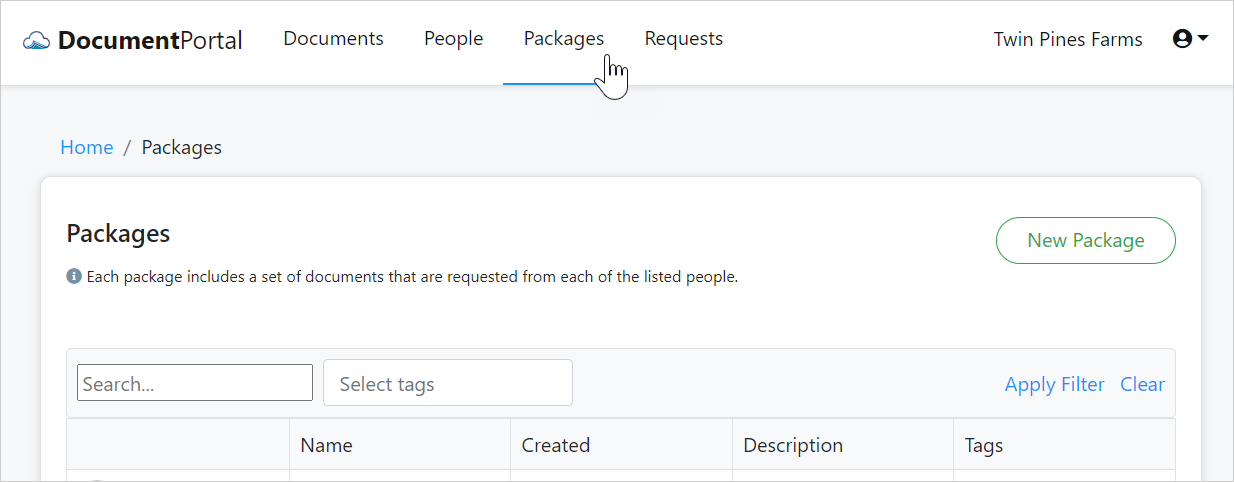
Now, click the "New Package" button at the top of the Packages Screen. Give it the name "H2A New Hires Package" and apply the tag "H2A".
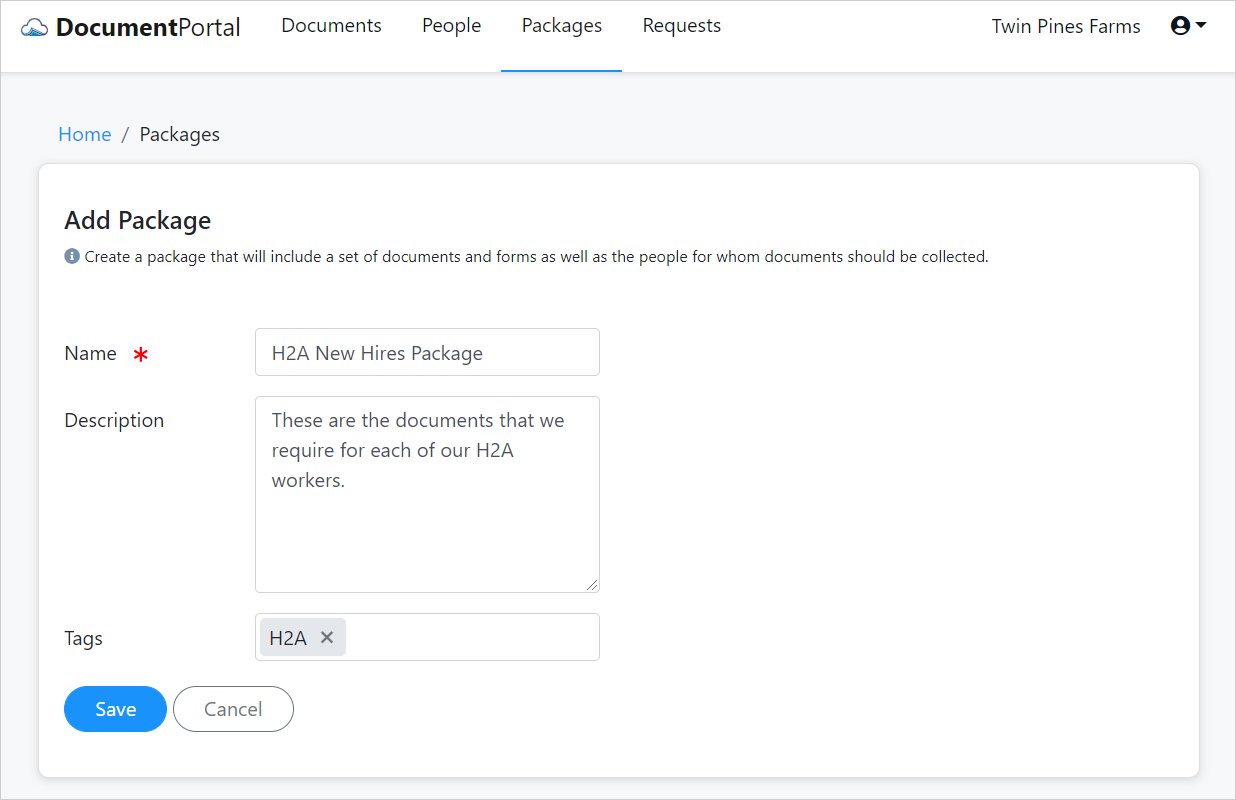
After you click the "Save" button, the Package Details Screen will be displayed. Click the "Documents" tab then click "Manage Documents" to view the Manage Package Documents Screen where you will be able to define documents required by your H2A New Hires Package.
Click the "Add Document" button to create the four required documents illustrated below.

Now, let's use our package to track the documents that we need from the fictitious Juan Valdez.
Click the "People" option near the top of the screen, then select Juan Valdez from the list. Once his screen is open, select the Packages tab and click the "Add Package" button. After selecting the H2A New Hires Package, click the "Add Selected Packages" button then click "Back" until you return to the detail screen for Juan Valdez shown below.
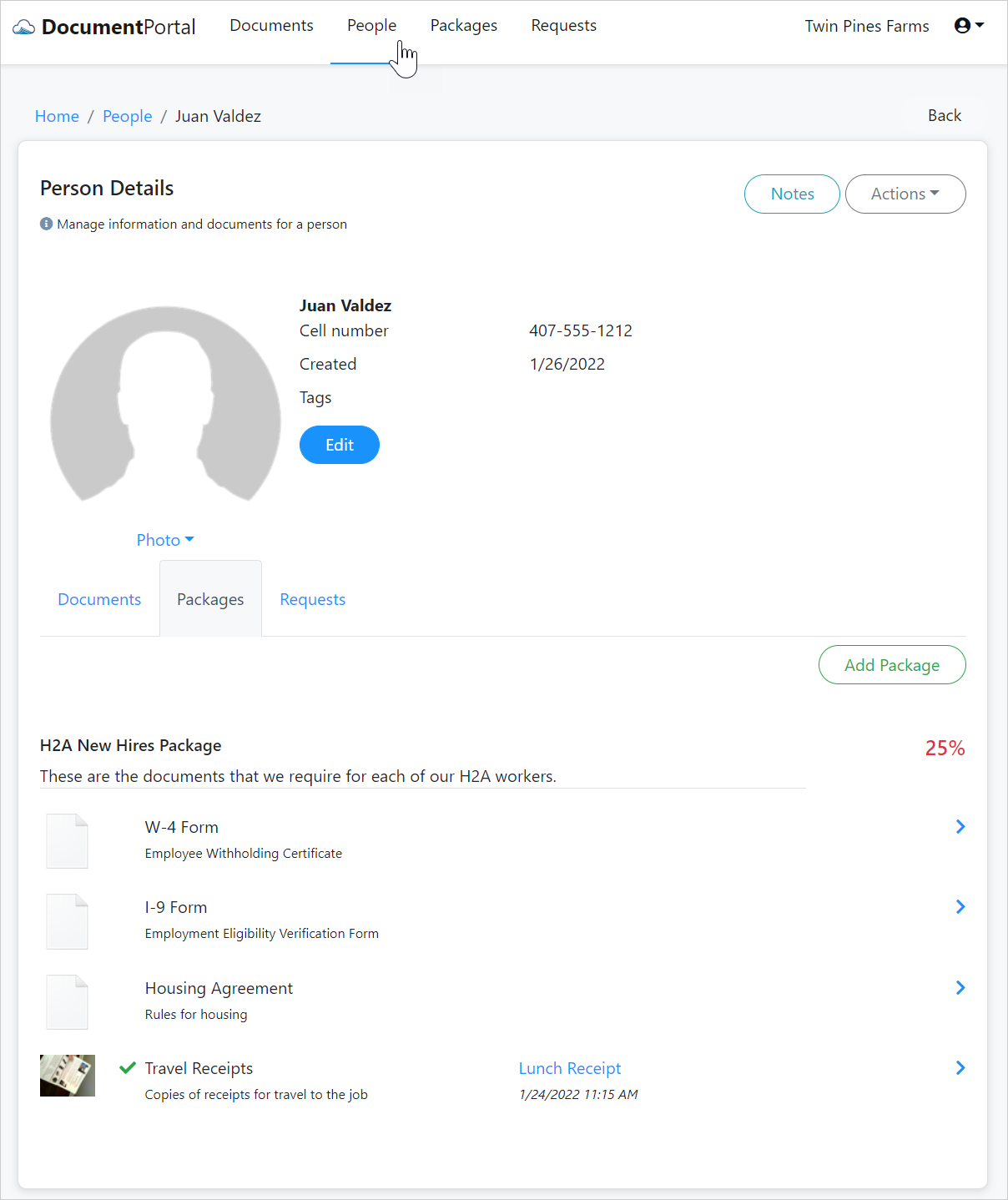
Finally, let's associate the travel receipt that was provided earlier in response to our document request. Click the right-arrow next to "Travel Receipts" then click the "Select from existing document" button when prompted. Once you've selected the travel receipt, you'll see that we've made 25% progress towards the required documents for Juan Valdez.
You can also track the progress of all workers in a single view to get a high level snapshot across your workforce.
Continuing on
Now that we've created a package, let's see how we can start to generate pre-filled documents using Forms. We'll start by getting some forms from the gallery then we'll actually see how to merge people's information into the form.
| 5. Get some forms |  |
Comments
0 comments
Please sign in to leave a comment.