
The Requests List provides options to review, add, update, and remove Requests from your Document Portal account.
What are Requests?
"Requests" are sets of instructions that can be sent to a people via email or text message. They'll receive a hyperlink to a mobile friendly web page that allows them to respond by uploading requested documents. For example, you may wish to ask a newly hired employee to use his cell phone to take pictures of his travel receipts as he incurs expenses.
By applying Tags and associating incoming documents with the Person, Document Portal will automatically categorize documents and let you know who has replied to each request.
How to find the Requests List
Click the "Requests " option at the top of the screen.
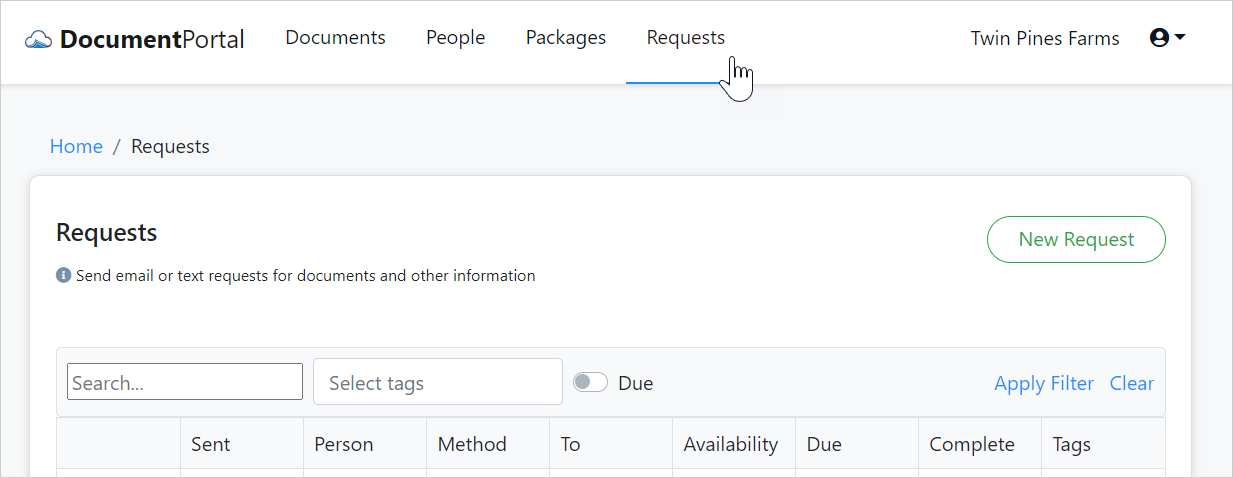
Requests List options
Once you've loaded the Requests List, you can perform the following actions.
Search. Type a keyword into the Search box and/or select one or more Tags then click "Apply Filter" to filter the list.
Sort the list items. Click on the heading of any column to sort the Requests List by a particular field. Click on it again to change the sort order.
Add a new Request. Click the "New Request" button to display the "Create Request" screen which provides options for creating a new Request.
Review Request Details. Click on the row for a Request to display the "Request Details" screen which allows you to change the instructions and status of the Request.
Create Notes for the Request. Click on the row for a Request to display the "Request Details" screen, then click the "Notes" button to display the "Request Notes" screen which allows you to add and review notes which have been associated with the Request.
Re-send a Request. Click on the row for a Request to display the "Request Details" screen, then click the "Actions" button to display a drop-down menu. Click "Re-send" to send the Request to the Cell Number or Email address which is defined in the Request details. If a person does not appear to receive an emailed Request, please ask them to check their Junk mail folder.
Delete a Request. Click on the row for a Request to display the "Request Details" screen, then click the "Actions" button to display a drop-down menu. Click "Delete" then confirm when prompted. Deleting a Request will permanently remove the record for that Request but will not delete any Documents which have been received for the deleted Request.
Review Received Documents for a Request. Click on the row for a Request to display the "Request Details" screen then check the lower half of the screen for a list of Received Documents.
Comments
0 comments
Please sign in to leave a comment.