
The "Document Details" screen provides options to review, update, delete and view information relating to a Document.
Documents are created and accessed from the Person Details, Package Details and Documents List screens and provide the ability to describe, categorize and download files such as images and scanned PDF documents.
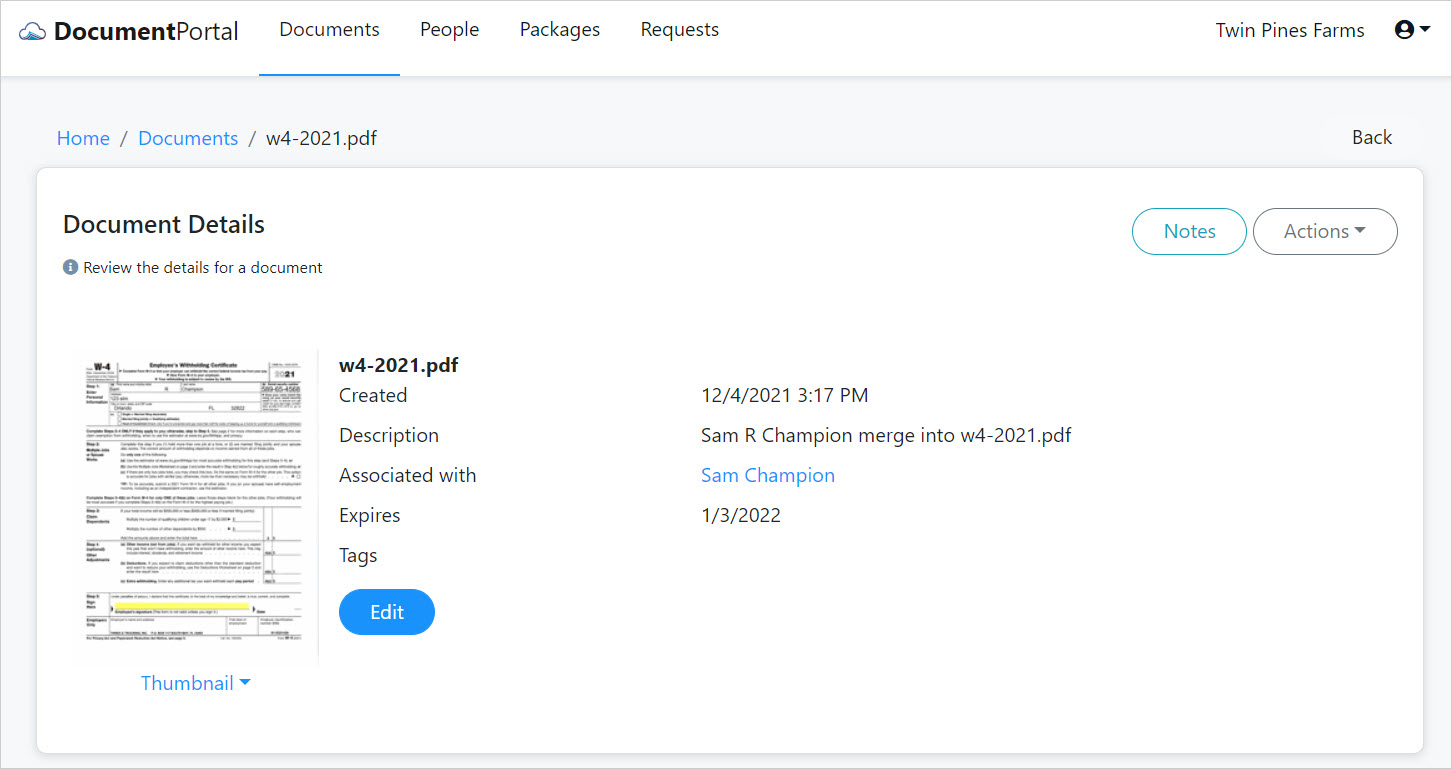
Document Details options
Once you've loaded a Document, you can perform the following actions.
Edit. Click the Edit button to change the name, description, associated person or expiration date for a document. You may also associate one or more Tags with a document to make it easy to find.
Create Notes. Click the "Notes" button to display the "Document Notes" screen which allows you to add and review notes which have been associated with the Document.
Download. Click the "Actions" button to display a drop-down menu then click "Download" to download the associated file to your computer.
View. Click the "Actions" button to display a drop-down menu then click "View" to view the associated file in a new tab of your web browser. This option will be enabled only for PDF and certain image files.
Delete. Click the "Actions" button to display a drop-down menu then click "Delete" and confirm when prompted. Deleting a Document will permanently remove the record as well as the associated file. It will also remove references to the Document by Packages and Document Requests.
Comments
0 comments
Please sign in to leave a comment.