
The Documents List provides options to review, add, update, and remove Documents from your Document Portal account.
What are Documents?
"Documents" are records that describe physical files such as photos or PDF files that have been submitted by your people or that you may have captured with your scanner. Each Document record can be associated with a person, tagged with keywords and given a name and description. Document Portal lets you search for documents based on their name, description, or associated tags. You can also find documents that are expiring or associated with a particular person. Once you've located a Document, you can view, download or print the associated file.
How to find the Documents List
Click the "Documents" option at the top of the screen.
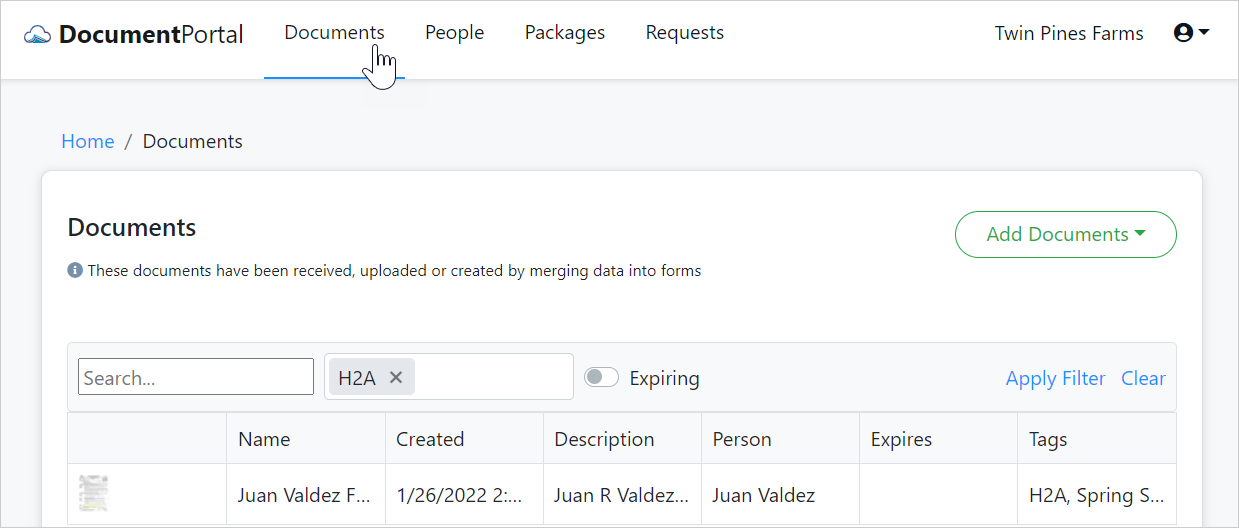
Documents List options
Once you've loaded the Documents List, you can perform the following actions.
Search. Type a keyword into the Search box and/or select one or more Tags then click "Apply Filter" to filter the list. You can also enable the Expiring switch to include only the documents with an expiration date.
Sort the list items. Click on the heading of any column to sort the Documents List by a particular field. Click on it again to change the sort order.
Add Documents. Click the "Add Documents" button to display a drop-down list of options.
- Upload. Choose this option to display the "Upload Documents" screen which lets you drag/drop or select a file from your local computer.
- From Camera. Choose this option to display the Camera Capture screen which lets you capture an image using a camera attached to your computer.
- Merge Forms. Choose this option to display the "Merge Forms" screen which lets you select one or more people and one or more forms to merge into new document(s).
Review Document Details. Click on the row for a Document to display the "Document Details" screen which allows you to change the name, description and other information that describe the document.
Download the Document File. Click on the row for a Document to display the "Document Details" screen, then click the "Actions" button to display a drop-down menu. Click the "Download" option to download the associated file.
Delete a Document. Click on the row for a Document to display the "Document Details" screen, then click the "Actions" button to display a drop-down menu. Click "Delete" then confirm when prompted. Deleting a Document will permanently remove the Document and its associated file from Document Portal.
Comments
0 comments
Please sign in to leave a comment.