
The People (Persons) List provides options to review, add, update, and remove People from your Document Portal account.
What are People?
"People" or "Persons" are records that describe people such as employees, customers or others with whom you may wish to associate documents. Document Portal provides built-in fields such as First Name, Last Name, and Address but also allows you to create custom fields to maintain other information that can be merged into Forms and generate new Documents.
How to find the People List
Click the "People" option at the top of the screen.
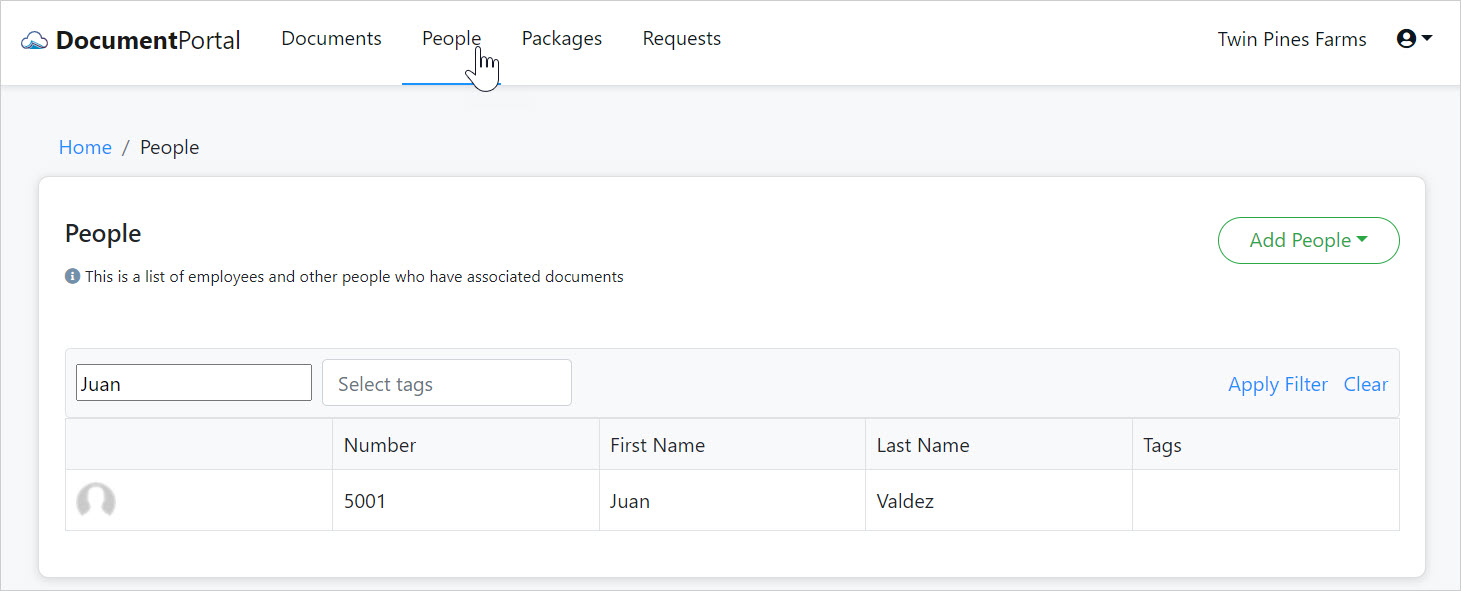
People List options
Once you've loaded the People List, you can perform the following actions.
Search. Type a keyword into the Search box and/or select one or more Tags then click "Apply Filter" to filter the list.
Sort the list items. Click on the heading of any column to sort the People List by a particular field. Click on it again to change the sort order.
Add People. Click the "Add People" button to display a drop-down list of options.
- Create new Person. Choose this option to display the "Create New Person" screen which lets you enter the name and other information for a new person. Note that the number is optional but must be unique if you choose to specify it.
- Import. Choose this option to display the Imports screen which allows you to download an Excel template which can be filled out then uploaded to add or update records for people.
Review Person Details. Click on the row for a Person to display the "Person Details" screen which allows you to change information about the person.
Update Portal Settings. Click on the row for a Person to display the "Person Details" screen, then click the "Actions" button to display a drop-down menu. Click the "Portal Settings" option to display the "Edit Portal Settings" screen which lets you decide if/how the person can respond to requests.
Delete a Person. Click on the row for a Person to display the "Person Details" screen, then click the "Actions" button to display a drop-down menu. Click "Delete" then confirm when prompted. Deleting a Person will permanently remove the record for that Person but will not delete any Documents although it will remove any associations between Documents and the deleted person.
Review Documents for a Person. Click on the row for a Person to display the "Person Details" screen then select the "Documents" tab which provides a list of all documents associated with that person.
Review Packages for a Person. Click on the row for a Person to display the "Person Details" screen then select the "Packages" tab which provides a list of Packages associated with that person.
Review Requests for a Person. Click on the row for a Person to display the "Person Details" screen then select the "Requests" tab which provides a list of Requests for that person.
Comments
0 comments
Please sign in to leave a comment.