
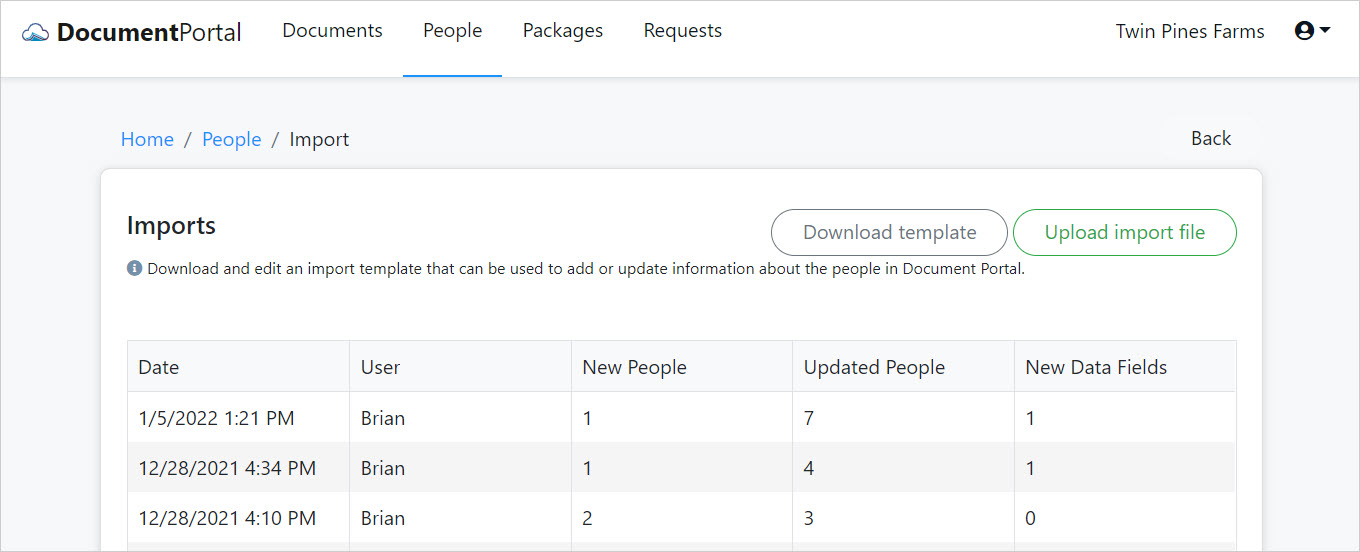
The Imports screen provides options to download an Import Template, upload an Import File and review a history of previous Imports.
What are Imports?
Each time you import information into Document Portal, an Import record is created to document what was changed.
How to find the Imports screen
Click the "People" option at the top of the screen the click the "Add People" button to display a drop-down menu. Select the "Import" option to display the Imports Screen.
What is an Import Template?
An "Import Template" is an Excel file that includes column headings such as First Name and Last Name for each Person whose information you wish to import into Document Portal. You can download the Import Template (with or without existing people's information), add or modify data, then upload the file back into Document Portal.
Imports Screen options
Once you've loaded the Imports screen, you can perform the following options.
Sort the list items. Once you've performed a few imports, you can click on the heading of any column to sort the Imports list by a particular field. Click on it again to change the sort order.
Download template. Click the "Download template" button to display the "Download Template" screen which includes options for including form fields and existing data. The Include form fields option lets you elect to include or omit custom data entry fields. The Include existing data option lets you choose whether the import template should be prepopulated with your list of people.
Upload import file. Click the "Upload import file" button to display the "Upload Import File" screen which lets you select and upload an import template from your computer that has been updated with information for your people.
Review Import Details. Click on the row for an Import record to display the "Import Details" screen which allows you to review details and download the file which was imported.
Comments
0 comments
Please sign in to leave a comment.