
The "Import Template" is a Microsoft Excel Spreadsheet with pre-defined column headings that are matched up with the Data Entry fields defined within your Document Portal account. Each row in the Import Template spreadsheet contains the information for a Person.

Where to get the Import Template
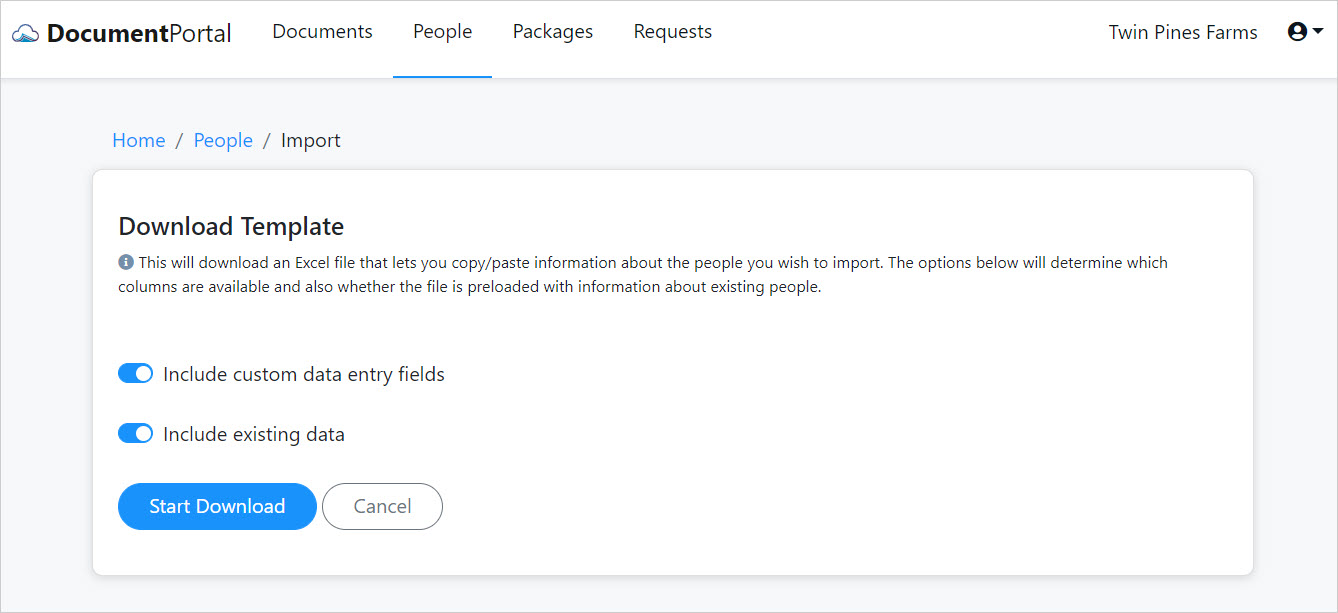
To download the Import Template, click the "Add People" button on the People screen then select the Import option to show the "Imports" screen. Click the "Download template" button to display the "Download Template" screen. Choose whether the template should include extra columns for custom data entry fields and also whether it should be prepopulated with your existing People the click the "Start Download" button.
Using the Import Template to add or update information for People
You can seed or add to the list of People in Document Portal by downloading the Import Template, using Microsoft Excel to update the template, then uploading the Import file back into Document Portal.
You can perform mass updates of the information for your People by downloading the Import Template with custom data entry fields and existing data, using Microsoft Excel to change the information within the template, then uploading the Import file back into Document Portal.
Column Names
You should not change existing Column Names (such as Number, New Number, First Name, etc.) but you can add new columns to include new custom information. For example, you could add a new column to the right of existing columns called "Gender" then enter a value such as "Male" or "Female" in each row under that heading. Once you import the template, a new "Gender" data entry field will appear on the editing screen for each person.
Rows
To add new people, just enter their information on an empty row. Once you import the template, records will appear in the People List for each new person.
To update existing people whose information is prepopulated into the spreadsheet, just change the existing value.
About the Number Field. Since Document Portal uses the "Number" field to match up your data and determine if you are adding or updating an existing Person, it is important that you do not change the value of the "Number **" field. To update numbers for existing people via the spreadsheet, enter the new value into the "New Number" column. When adding new people with numbers, feel free to put their number into either the Number or New Number field.
Comments
0 comments
Please sign in to leave a comment.