
The "Billing Portal" provides options to review and print invoices, manage your payment method and update or cancel your plan with Document Portal.
How to find the Billing Portal
Click the drop-down button at the upper-right side of the screen then click "My Account".
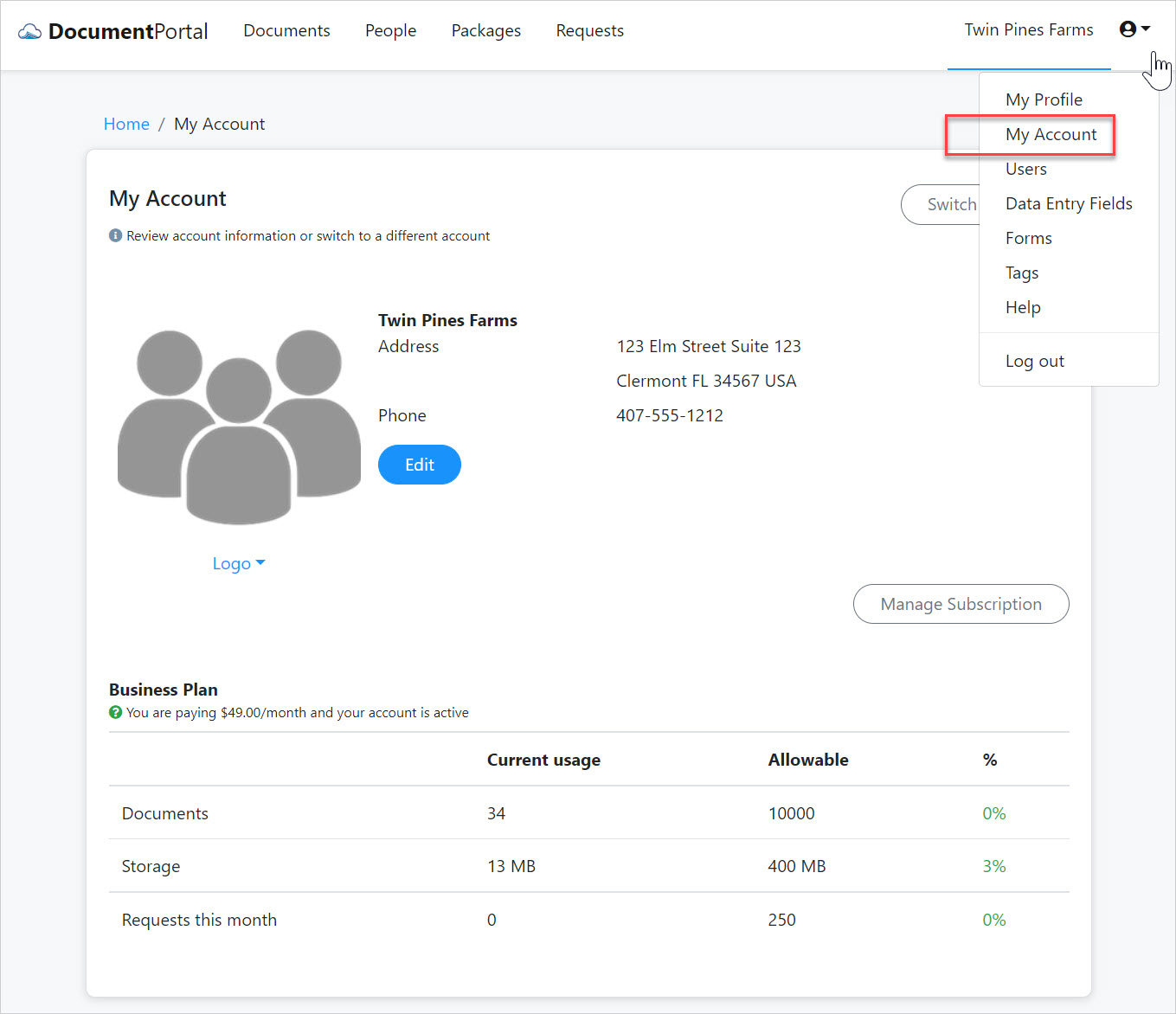
Once the "My Account" screen is displayed, click the "Manage Subscription" button then click the "Billing Portal" button on the "Subscription Options" screen. Note that the "Manage Subscription" button will be disabled if you are not an Admin for the current account.
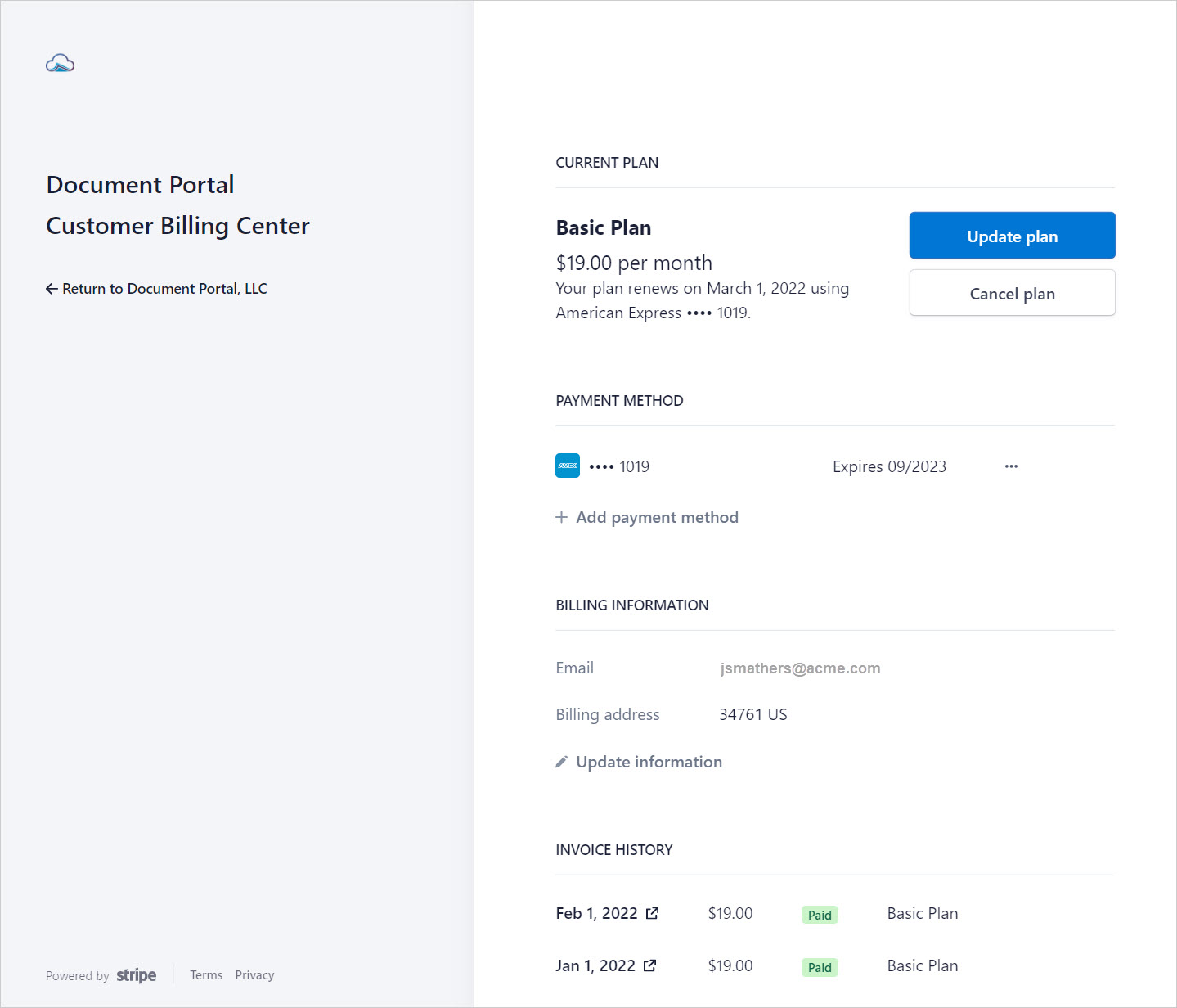
Billing Portal options
Once you've loaded the Billing Portal, you can perform the following actions.
Update plan. Click the "Update plan" button to display the "Update your plan" screen which shows your current plan and provides options to switch to a different plan. To upgrade your plan, click the "Continue" button next to the desired plan. If you are upgrading your plan, a confirmation screen will let you know how much you'll be paying on your next billing cycle and also how much you'll pay today to cover the pro-rated difference in cost for the remainder of your current billing cycle. If you are downgrading your plan, the confirmation screen will let you know how long it will be before your prepaid balance runs out for the new lower amount.
Cancel plan. Click the "Cancel plan" button to display the "Cancel your plan" screen. A message will let you know that your plan will be cancelled but is still available until the end of the current billing period once you've confirmed.
Add or remove payment method. Click the ellipsis "..." button next to a listed payment method to remove it or make it the default. Click the "Add payment method" link to display the "Add payment method" screen which lets you enter information for a credit card.
Change billing information. Click the "Update information" link to button to display the "Billing information" screen which lets you modify the email, address and phone number associated with the billing account.
Review Invoice History. The Invoice History is displayed at the bottom of the screen and provides a list of invoices which have been billed to your credit card. Click on the link icon next to the invoice date to open a new tab with options to view invoice details, download the invoice and download a receipt.
Comments
0 comments
Please sign in to leave a comment.