
The "Form Details" screen provides options to review, update, delete and view information relating to a Form.
"Forms" are PDF documents that include form fields which will be updated with information when you perform a merge. You can upload forms from your computer or import them from the Forms Gallery.
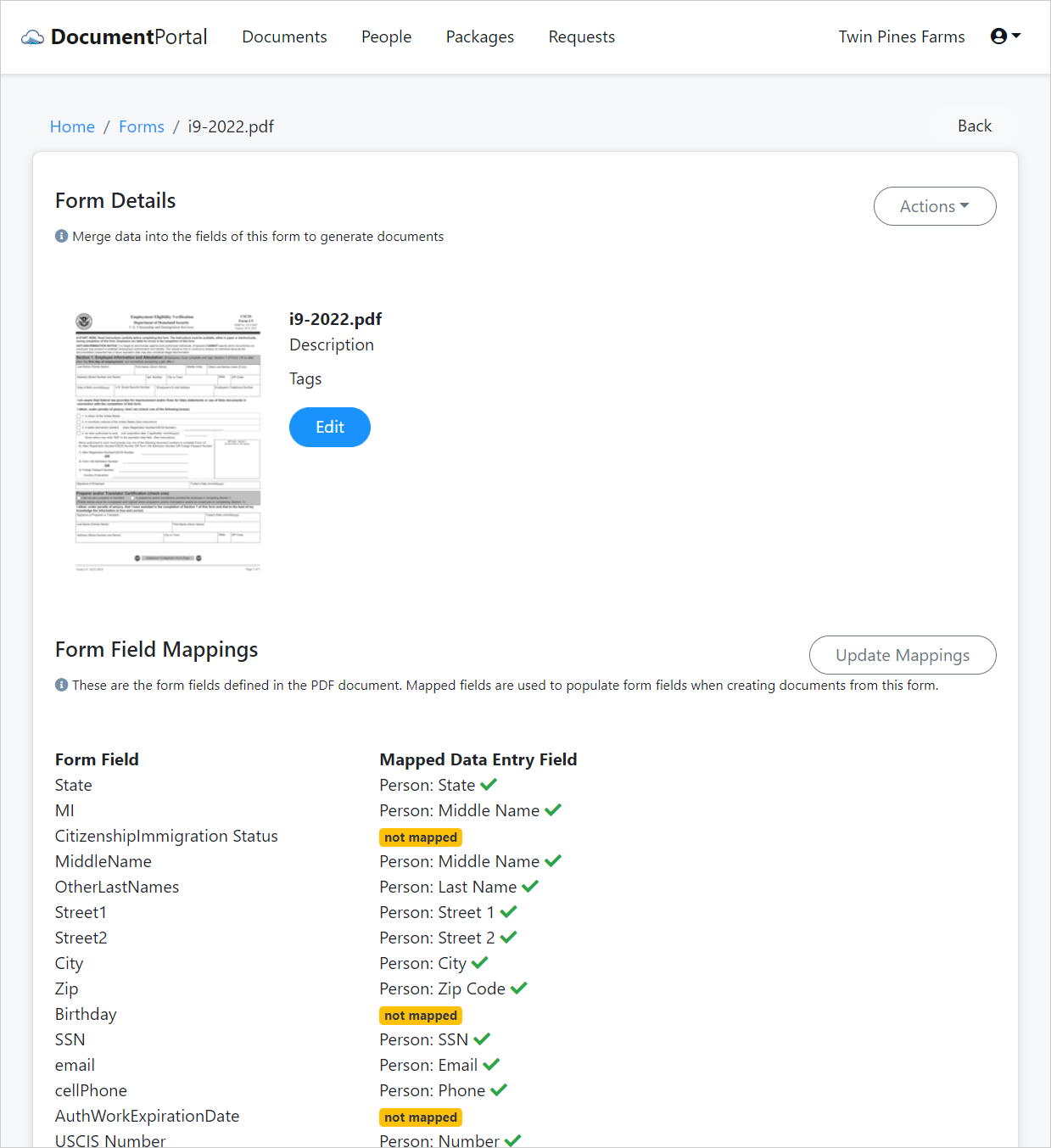
Form Details options
Once you've loaded the Form Details screen, you can perform the following actions.
Edit. Click the Edit button to change the name and description for a Form. You may also associate one or more Tags that will be applied to each Document that is created by merging the form with people's information.
Download. Click the "Actions" button to display a drop-down menu then click "Download" to save the Form to your computer for review and/or modification.
Replace File. Click the "Actions" button to display a drop-down menu then click "Replace File" to display the "Upload Replacement Form" screen which prompts you to select a PDF document to upload from your computer. This option is generally used after downloading and altering an existing form with a tool such as Adobe Acrobat.
Delete. Click the "Actions" button to display a drop-down menu then click "Delete" and confirm when prompted. Deleting a Form will permanently remove the Form but will not affect any documents which were created from the Form.
Update Mappings. Document Portal merges information from your Account as well as for selected People through the use of Form Field Mappings which are shown near the bottom of the Form Details screen. Click the "Update Mappings" button to display the "Form Field Mappings" screen which lets you update the mappings of Document Portal information into the PDF's form fields.
While the left-hand column identifies the form fields which have been defined within the PDF file, the right-hand column provides options to select which Document Portal information will be used to populate the PDF field when the merge is performed.
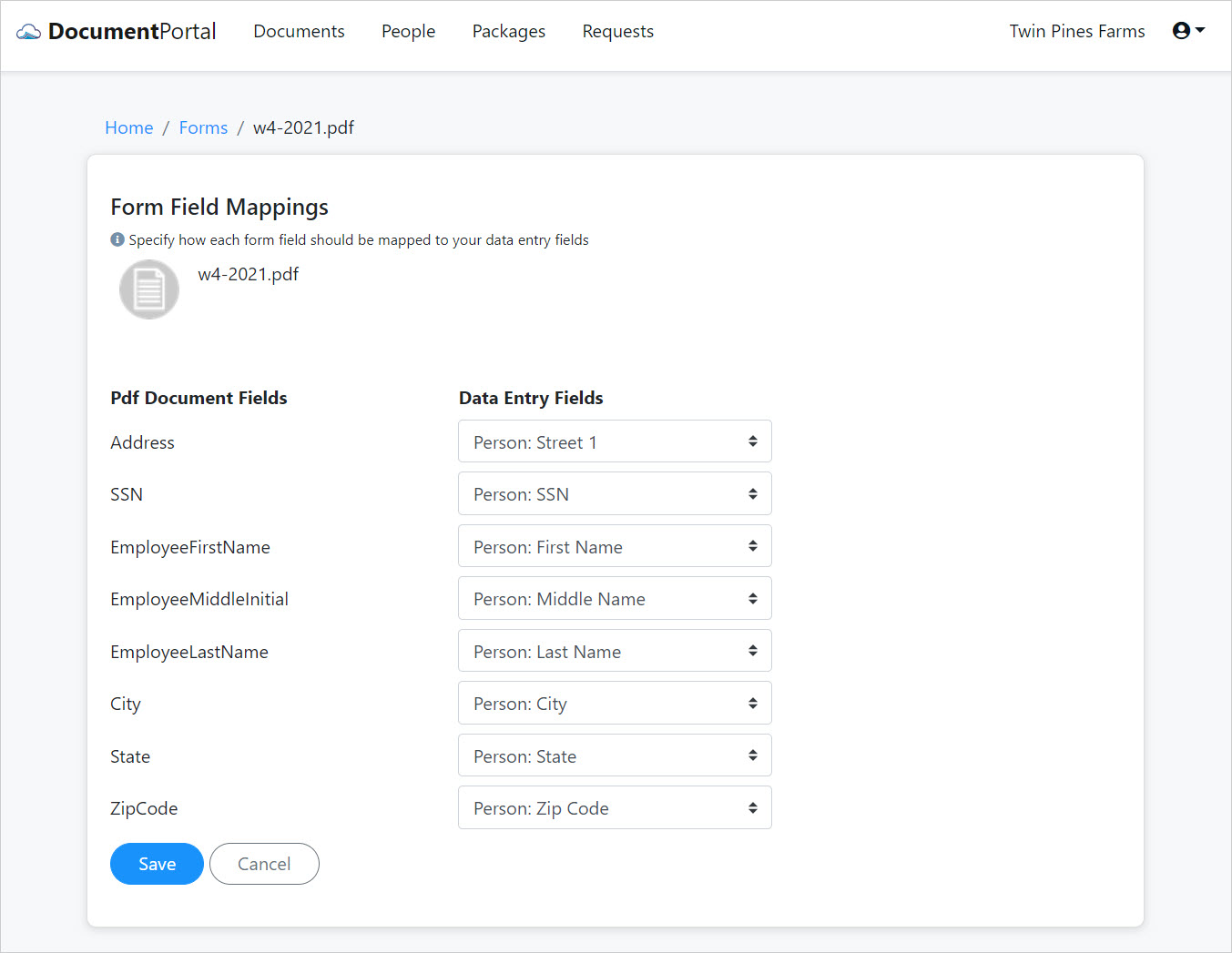
The Data Entry Fields selector includes the following options.
- Not mapped. Choose this option to leave the field unmapped. When performing a merge, Document Portal will not attempt to update the PDF field.
- Account fields. Choose from fields such as Account: Name, Account: City, or others which can be updated on the "My Account" screen.
- Person fields. Choose from fields such as Person: First Name, Person: City, or others which can be updated for each Person on the "Person Details" screen.
- New custom fields. Choose to create a new custom field that will appear on the "My Account" screen or on the "Person Details" screen once you've clicked the "Save" button. Custom fields behave just like built-in fields and can be used to collect information that is unique to your forms.
- Calculated fields. Choose from fields such as "Current Date" or "Full name" to indicated that a calculated field should be inserted into the Pdf form field when a merge is performed. Calculated Fields include:
- Account Address. Combines the Street1, Street2, City, State and Zip Code fields from the "My Account" screen into a single line of text.
Example =>123 Elm Street Suite 101 Centerville GA 34983 - Birth date long format. Formats the person's birth date in long format.
1/12/1993 => "Tuesday, January 12, 1993" - Birth Day of month. Formats the person's birth date as a number representing the day of month.
1/12/1993 => "12" - Birth day of week. Formats the person's birth date as the day of week.
1/12/1993 => "Tuesday". - Birth month. Formats the person's birth date as a number representing the month.
1/12/1993 => "1" - Birth month name. Formats the person's birth date as the name of the month.
1/12/1993 => "January" - Birth year. Formats the person's birth date as a number representing the year.
1/12/1993 => "1993" - Current Date. Generates the date on which the merge is performed.
Example => 3/1/2021 - Current Date and Time. Formats the date of the merge along with the time of the merge.
Example => 3/1/2021 1:54 PM UTC - Current Day of week. Formats the date of the merge as the day of week.
Example => "Monday" - Current Time. Formats the time of the merge.
Example => 1:54 PM UTC - Full name. Formats the person's name as First Name Last Name
Example => John Doe - Full name with middle initial. Formats the person's name as First Name MI Last Name
Example => John Q. Doe - Last Name, First Name. Formats the person's name as Last Name, First Name
Example => Doe, John - Middle Initial. Produces the first letter of the person's middle name.
Example => "Q" - Person Address. Combines the Street1, Street2, City, State and Zip Code fields for the person into a single line of text.
Example =>456 Oak Street Apt 101 Northville GA 36987
- Account Address. Combines the Street1, Street2, City, State and Zip Code fields from the "My Account" screen into a single line of text.
Comments
0 comments
Please sign in to leave a comment.