
The Forms List provides options to add, update, and remove Forms from your Document Portal account.
What are Forms?
"Forms" are PDF documents that include form fields which will be updated with information when you perform a merge.
Your organization may have Waivers, Agreements, Policies or other forms that are designed with your letterhead as well as fields for entering employee or customer information. Perhaps you've already tailored government forms such as the I-9 Employment Eligibility Verification for use when you onboard workers. Once you've uploaded these forms into Document Portal, you'll be able to merge information from your People into them to generate pre-filled documents.
If you don't already have any such forms, be sure to check out the Form Gallery which is a collection of forms that have been shared with you by other Document Portal Users.
How to find the Forms List
Click the drop-down button at the upper-right side of the screen then click "Forms". Note that the "Forms" option will be disabled if you are not an Administrator for the current account.
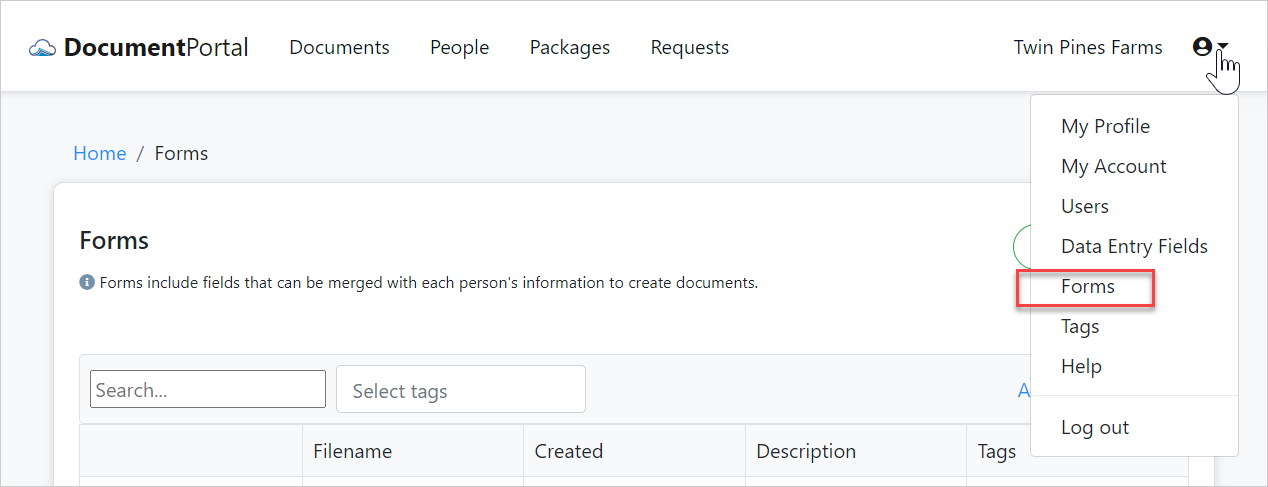
Forms List options
Once you've loaded the Forms List, you can perform the following actions.
Search. Type a keyword into the Search box and click "Apply Filter" to filter the list.
Sort the list items. Click on the heading of any column to sort the Forms List by a particular field. Click on it again to change the sort order.
Add Forms. Click the "Add Forms" button to display a drop-down list of options.
- Upload. Choose this option to display the "Upload Form" screen which lets you drag/drop or select a file from your local computer. This should be a PDF document that has been prepared with Form Fields using an application such as Adobe Acrobat.
- From Gallery. Choose this option to select a form from the Form Gallery which is a collection of forms that have been shared with you by other Document Portal Users.
Edit a Form. Click on the row for a Form to display the "Form Details" screen which allows you to change the name, descriptions and tags which are associated with the Form. The Form Details article provides more information including a discussion on Form Field Mappings.
Download the Form File. Click on the row for a Form to display the "Form Details" screen, then click the "Actions" button to display a drop-down menu. Click the "Download" option to download the PDF file to your local computer. You'll use this option if you want to make changes to the PDF document using a tool such as Adobe Acrobat.
Replace the Form File. Click on the row for a Form to display the "Form Details" screen, then click the "Actions" button to display a drop-down menu. Click the "Replace File" option to display the "Upload Replacement Form" screen which lets you drag/drop or select a file from your local computer. You'll use this option if you want to make changes to the PDF document using a tool such as Adobe Acrobat.
Delete a Form. Click on the row for a Form to display the "Form Details" screen, then click the "Actions" button to display a drop-down menu. Click "Delete" then confirm when prompted. Deleting a Form will not alter or remove any Documents that have been generated from the Form.
Comments
0 comments
Please sign in to leave a comment.