
The Users List provides options to update, remove and invite Users to access to your Document Portal account.
What are Users?
"Users" are the people who can access your Documents, People, Packages, Requests and other information within Document Portal. "Users" are not the same thing as "People" who are unable to access Document Portal except to respond to Document Requests.
Three types of Users
User. Can add or update information such as Documents, People, Packages and Requests but does not have access to Forms, Tags, Users or Account management.
Read Only. Can view but not modify information such as Documents, People, Packages and Requests.
Admin. Can do anything within the account. Note that Admin Users can invite new users but may not change information about existing users (who may have their own account.)
How to find the Users List
Click the drop-down button at the upper-right side of the screen then click "Users". Note that the "Users" option will be disabled if you are not an Admin for the current account.
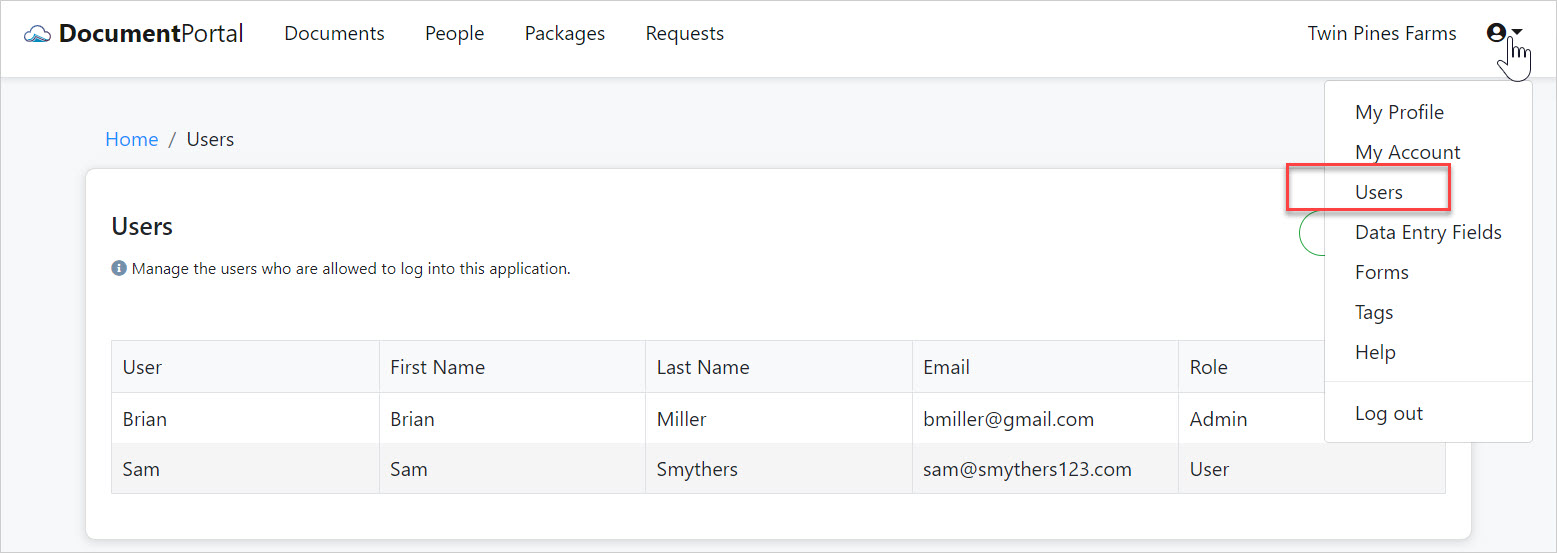
User List options
Once you've loaded the Tags List, you can perform the following actions.
Sort the list items. Click on the heading of any column to sort the User List by that data type.. Click on it again to change the sort order.
Invite or add a new User. Click the "New User" button to display the "Add User" screen which will prompt you for the name, email, and role (User, Read Only or Admin) of the User. Flip the "Send welcome email" switch to send an email once the Save button is clicked.
- If the User already has an account with Document Portal, his/her existing account will be associated with yours. Once they've logged into Document Portal, they can use the "Switch Account" option on their My Account screen to swap into your account.
- If the user does not have an account with Document Portal, they'll have to reply to the email invitation to specify a password.
Edit a User. Click on the row for a User to display the "User Details" screen which allows you to change the user's Role within your Document Portal account. The user can change their own name and email in the "My Profile" screen when they log in. Important: Make sure you have at least one or two Users who are in the Administrator role.
Send welcome email. Click on the row for a User to display the "User Details" screen, then click the "Actions" button to display a drop-down menu. Click the "Send welcome email" button to email a link to the User's email address with instructions for creating their account.
Delete a User. Click on the row for a User to display the "User Details" screen, then click the "Actions" button to display a drop-down menu. Click "Delete" then confirm when prompted. Deleting a User will remove its association from your account but will not remove the User's ability to get into Document Portal if the User is a member of another account.
Comments
0 comments
Please sign in to leave a comment.