
The "My Account" screen provides options to update information relating to your Document Portal Account as well as to manage your subscription.
How to find the My Account screen
Click the drop-down button at the upper-right side of the screen then click "My Account".
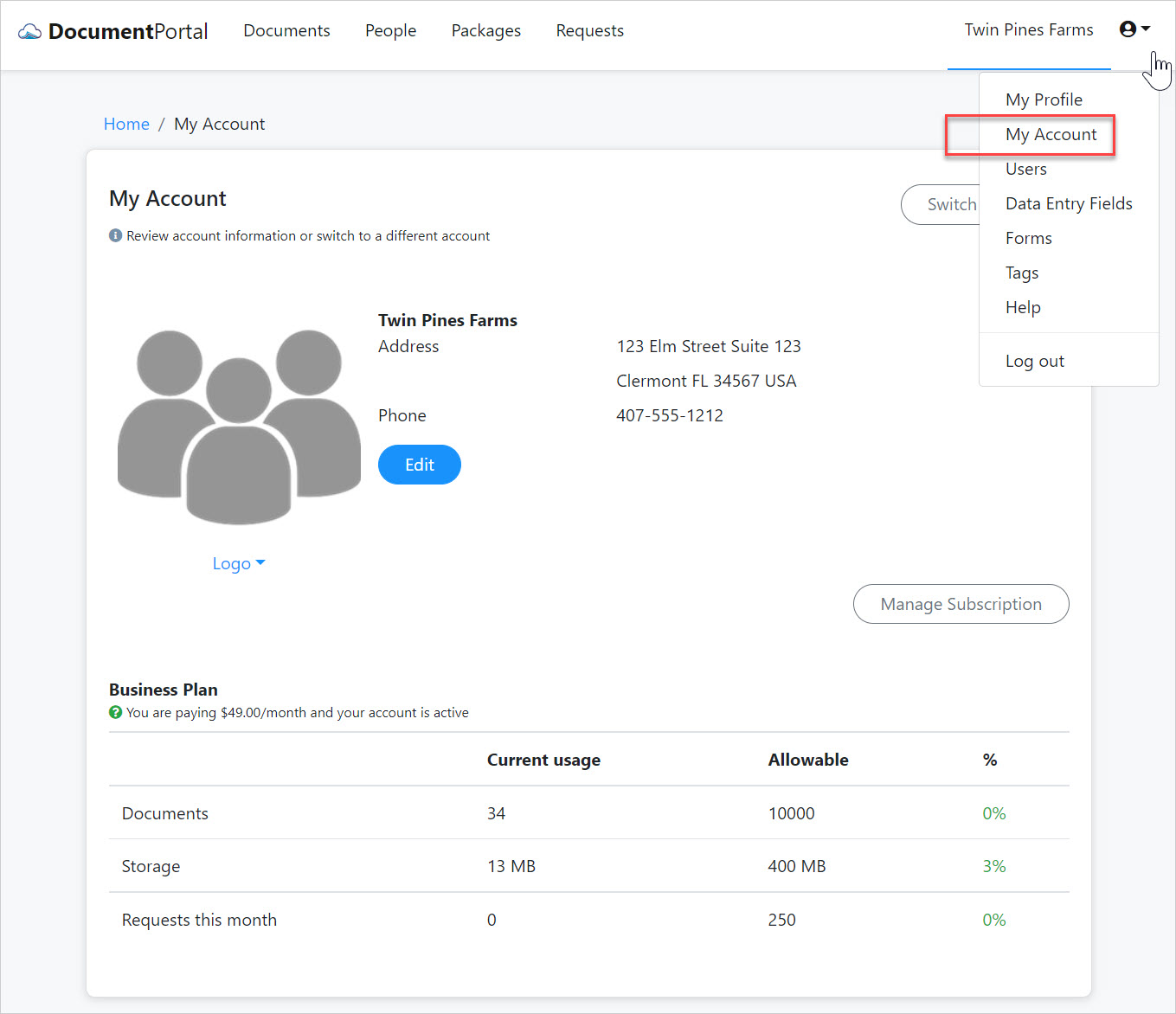
My Account options
Once you've loaded the My Account screen, you can perform the following actions.
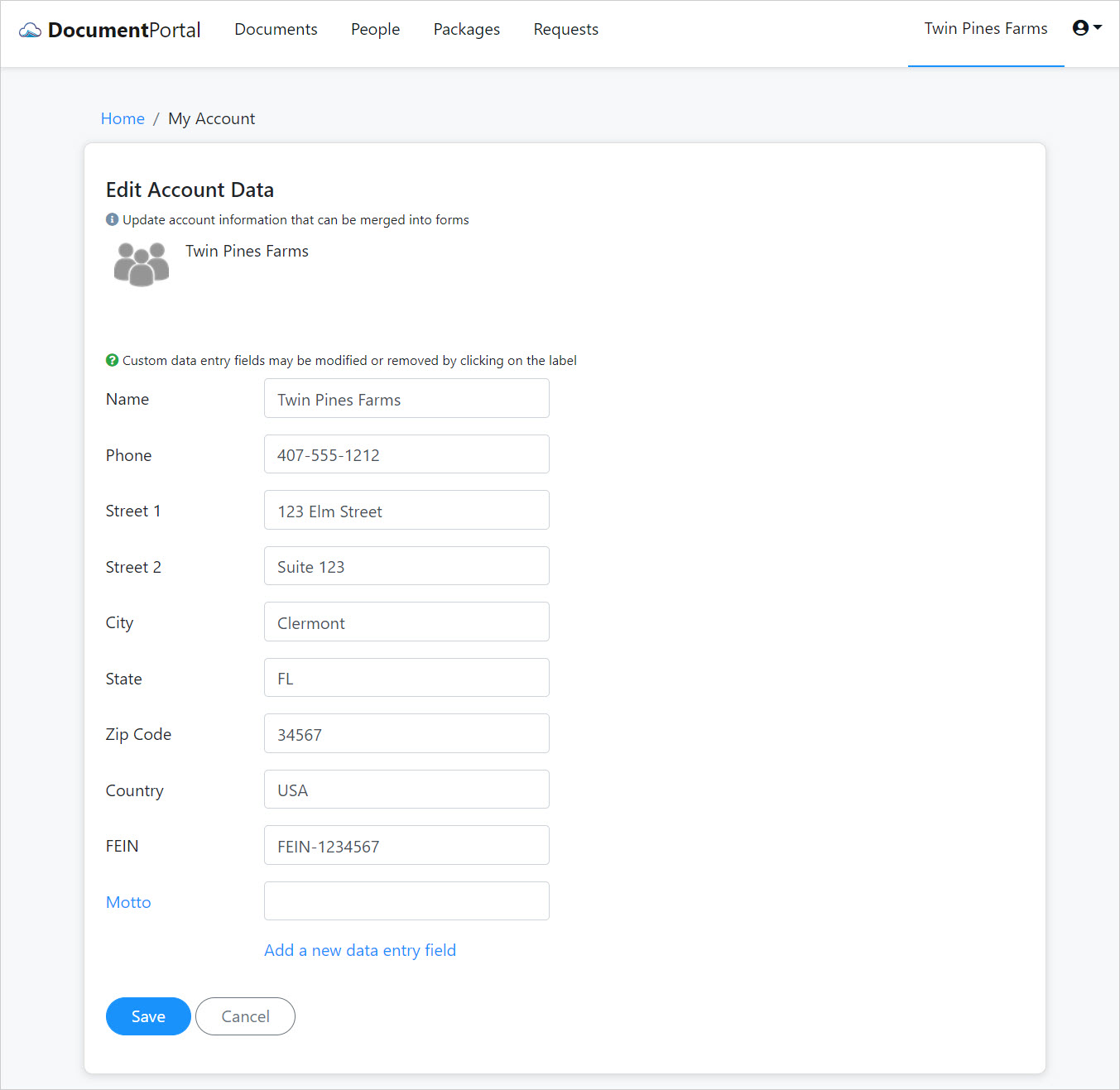
Edit your information. Click the Edit button to display the "Edit Account Data" screen which lets you modify your company's name, address and other built-in fields. You can also click the option to "Add a new data entry field" which can be used to enter information that can be merged into Forms.
Please note that the Edit option will be disabled if you are not an Administrator for the Document Portal Account.
Change your logo. Click the Logo link below the Logo image to upload or remove your company logo.
Please note that the Logo option will be disabled if you are not an Administrator for the Document Portal Account.
Review your usage. Notice the table displayed at the bottom of the screen provides a count of documents, your storage size and a indication of what is allowed for your current subscription.
Manage Subscription. If you are an Administrator for the Document Portal Account, you can click the "Manage Subscription" button to change your plan, review your billing history, print invoices and maintain payment information.
Comments
0 comments
Please sign in to leave a comment.