
The "Request Details" screen provides options to review, update, delete and view information relating to a Request.
Requests are created and accessed from the Person Details Screen or from the Requests List and include instructions for a Person to send in documents.
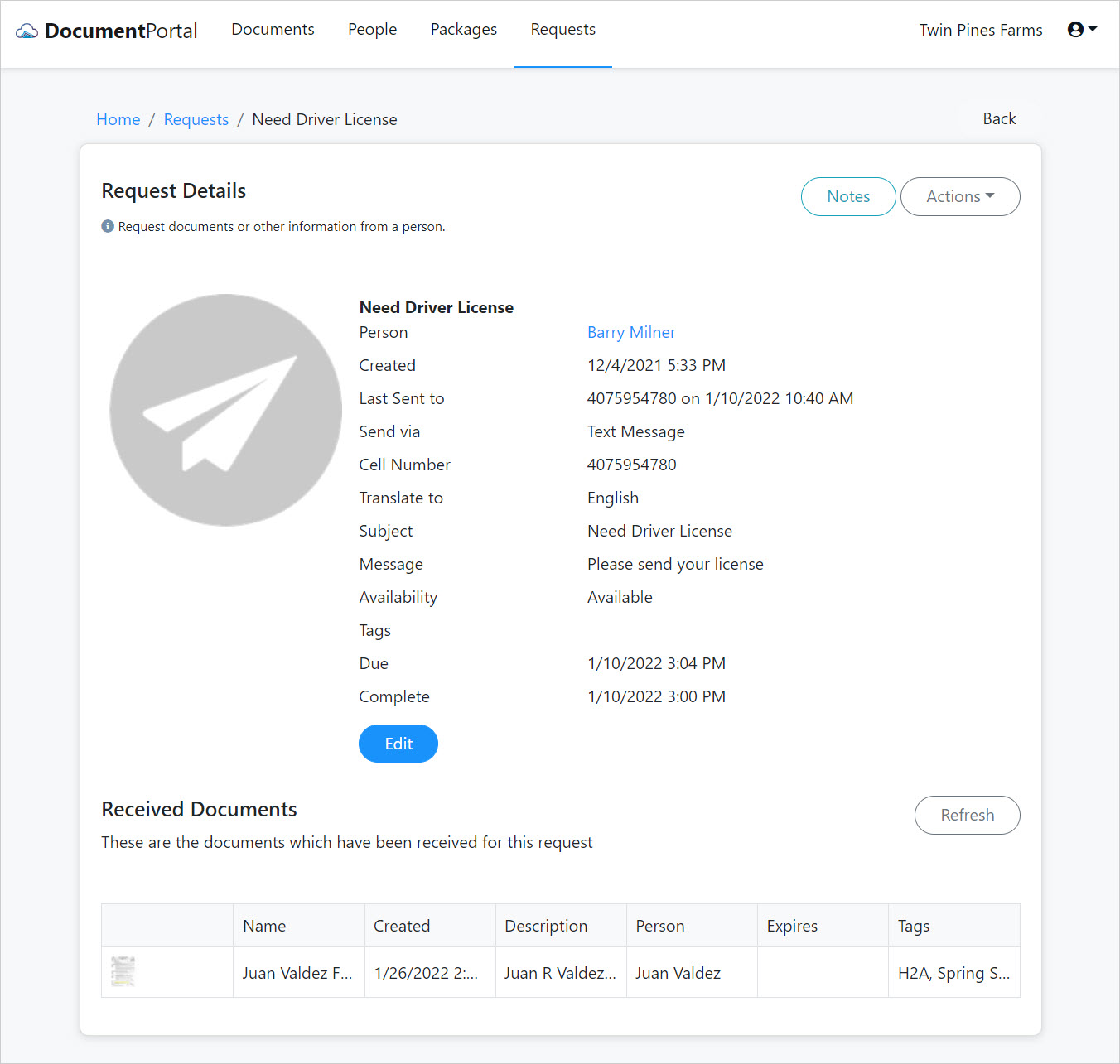
Request Details options
Once you've loaded a Request, you can perform the following actions.
Edit. Click the Edit button to change the information associated with a particular Request.
Create Notes. Click the "Notes" button to display the "Request Notes" screen which allows you to add and review notes which have been associated with the Request.
Re-send. Click the "Actions" button to display a drop-down menu then click "Re-send" to send the Request to the Cell Number or Email address which is defined in the Request details.
Delete. Click the "Actions" button to display a drop-down menu then click "Delete" and confirm when prompted. Deleting a Request will permanently remove the record for that Request but will not delete any Documents which have been received for the deleted Request.
Review Received Documents. Notice the list of Received Documents displayed at the lower half of the screen. The "Refresh" button will update the list with any documents which have been received since the page was initially loaded. Click on the row for any received document to review its details.
Comments
0 comments
Please sign in to leave a comment.